Google Gemini Comes to Windows as a Dedicated Desktop AI Assistant With Instant Keyboard Access
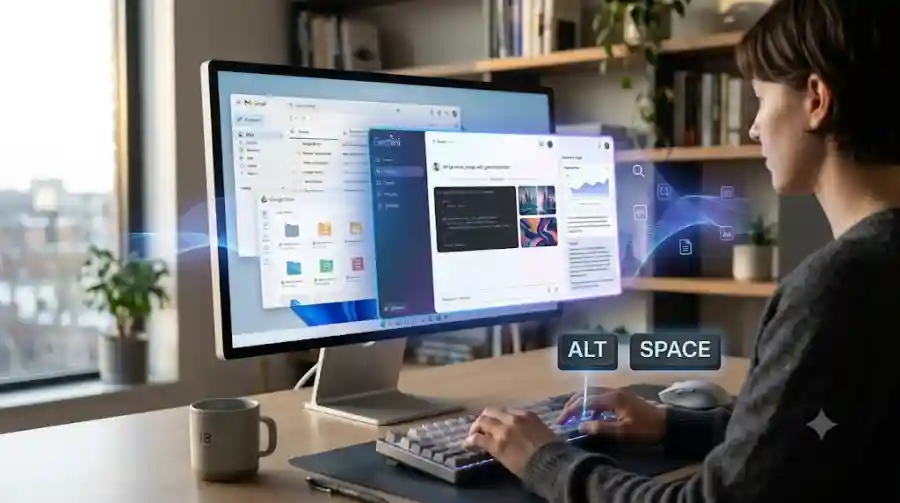
The launch is more than a simple desktop wrapper for Gemini. Google is positioning the Windows application as a central AI workspace where users can ask questions, draft content, work with information from Google apps, hand off multi-step tasks to Gemini's AI agent capabilities, and create images and videos.
The application is available globally for Windows 10 and Windows 11, making Gemini easier to access for a large PC audience.
What Is the Gemini App for Windows?
The Gemini app for Windows is Google's dedicated desktop application for accessing Gemini directly from a PC.
Previously, Windows users could primarily interact with Gemini through the web or other Google products. The new application changes that workflow by providing a native desktop entry point that can remain available while users work in other applications.
Google says the app is designed to work alongside existing desktop tools rather than forcing users to constantly switch browser tabs. Users can open Gemini over their current work, ask a question, generate content or request assistance, and then return to their previous application.
This could make Gemini particularly useful for students, office workers, developers, writers, researchers and other users who frequently move between multiple applications.
Alt + Space Makes Gemini Instantly Accessible
One of the most notable features of the new Windows app is its keyboard shortcut.
Users can press Alt + Space to open Gemini over their active work. This means Gemini can be accessed without manually opening a browser, searching through the Start menu or switching to another window.
For example, someone writing a presentation could quickly open Gemini to generate title ideas. A student could ask for an explanation of a difficult concept. A developer could request help understanding a piece of code.
The important part is the reduced friction.
AI assistants become more useful when they are available at the exact moment users need them. Google's Windows application is clearly designed around that idea.
Gemini Can Handle More Than Simple Questions
The new application is not limited to basic chatbot conversations.
Google says users can use Gemini to draft documents, manage tasks, summarize information and work with content while remaining on their desktop.
The official Gemini support documentation also lists capabilities including:
- Answering questions in real time
- Drafting emails, documents and creative content
- Summarizing articles, documents and web pages
- Brainstorming ideas
- Providing coding assistance
- Analyzing uploaded images
These capabilities make the Windows application useful across both personal and professional workflows.
Gemini Brings AI Agents to the Windows Desktop
Another important part of the launch is access to Google's agentic capabilities.
Inside the Windows application, users can hand off multi-step tasks to Gemini Spark, which Google describes as a 24/7 personal AI agent. Gemini can also work with information from Google services such as Gmail and Google Drive when supported by the user's setup.
This represents an important shift in how desktop AI assistants are evolving.
Instead of simply answering a question, an AI assistant can increasingly become a layer between the user and their digital tools. Users can describe what they want to accomplish, while the AI handles more of the intermediate work.
The practical value will depend on how reliably these agent capabilities perform in real-world situations, but bringing them into a desktop application makes the experience more accessible.
Image and Video Creation Are Built In
Google is also bringing its creative AI capabilities into the Windows Gemini experience.
The company says users can create custom images using Nano Banana and direct high-quality video creation using Gemini Omni from within the desktop application.
That means users do not necessarily need to move between multiple creative tools for every part of an AI-assisted project.
A user could, for example, brainstorm an idea in Gemini, generate written content, create a visual concept and continue working from the same desktop environment.
For content creators and marketers, this could make Gemini a more interesting competitor to standalone AI productivity and creative applications.
What Are the System Requirements?
Google's support documentation provides relatively modest requirements for the Gemini Windows application.
Users need:
- A PC running Windows 10 or later
- At least 8 GB of RAM
- At least 200 MB of available storage
- A stable internet connection
- A personal Google Account or an eligible work or school Google Account
The application can be downloaded through Google's Gemini desktop page and installed using the GeminiSetup.exe installer.
The low storage requirement is particularly notable because the application is intended to operate primarily as a connected AI service rather than a large local AI model.
How to Get Gemini on Windows
Installing the new Gemini desktop application is straightforward.
Users can download the Windows application from Google's official Gemini desktop page, install the GeminiSetup.exe file and then sign in with their Google Account. Once installed, Gemini can be launched from Windows or accessed quickly using Alt + Space.
Download Gemini for Windows from Google
The availability of the application globally means users do not need to wait for a limited regional desktop rollout, although individual features and account capabilities can still depend on Google's service availability and account configuration.
Gemini Windows App vs Using Gemini in a Browser
The biggest difference is convenience rather than simply access to a different chatbot.
The browser version already provides users with access to Gemini. The Windows application adds a persistent desktop workflow and a dedicated shortcut.
That distinction matters because frequent AI users often lose time switching between applications and browser tabs.
With the Windows application, Gemini can be opened directly over the current task.
For occasional users, this may not make a major difference. For people who use AI throughout the day for writing, research, coding, brainstorming or productivity, the desktop approach could be considerably more convenient.
Why Google's Windows Move Matters
The launch comes as AI companies increasingly compete to make assistants part of users' everyday operating environments.
AI is moving beyond standalone chat windows.
Microsoft has integrated Copilot deeply into Windows and its productivity ecosystem. Other AI companies are building coding agents, desktop assistants and autonomous tools. Google's Gemini Windows application is another step toward making AI assistance continuously available while users work.
The bigger competition may therefore no longer be about which chatbot produces the best answer.
It could increasingly be about which AI assistant can become the most useful layer across a user's entire digital workflow.
Google already has an advantage through its ecosystem of Gmail, Drive, Docs and other services. Bringing Gemini to Windows gives the company another entry point into users' daily computer activity.
What Users Should Expect Next
Google describes the Windows application as an early step, saying that more native desktop capabilities will roll out over time.
That suggests the current release is likely only the beginning of Google's desktop strategy.
Future improvements could make the application more deeply connected with Windows workflows, files, applications and other services. However, Google has not provided a complete roadmap for those future capabilities, so users should not assume that every possible desktop integration is already available.
For now, the key advantage is simple: Gemini is much easier to access without leaving whatever users are currently doing.
The new Gemini app for Windows is an important expansion of Google's AI strategy.
Rather than keeping Gemini primarily inside a browser, Google is putting its assistant directly on the Windows desktop and giving users an instant Alt + Space shortcut.
The combination of desktop access, AI assistance, Google app connectivity, agentic capabilities and image and video creation makes the application more than a basic desktop chatbot.
For Windows users who already rely heavily on Gemini, the new application could make AI considerably more convenient. For Google, it represents another step toward making Gemini an always-available assistant across everyday computing.
The most interesting part may be what comes next. As Google adds more native desktop capabilities, the Gemini Windows app could gradually evolve from an AI chat application into a broader AI interface for personal computing.
Frequently Asked Questions
Is the Gemini app available for Windows?
Yes. Google launched the Gemini app for Windows on September 10, 2026. It is available globally for Windows 10 and Windows 11.
What shortcut opens Gemini on Windows?
The default shortcut is Alt + Space, which lets users quickly open Gemini over their current work.