Your Ultimate Roadmap to Smooth Gameplay in Call of Duty HQ
Few things are more frustrating than settling into your gaming chair, ready for a high-stakes round of Warzone or a tactical session in Black Ops 6, only to be met with a frozen screen or a "Disconnected from Server" pop-up. Since the transition to the Call of Duty HQ launcher, the game has become more complex. While having all your titles in one place is convenient, it also means that a single technical glitch can block you from multiple games.
If you are struggling with launch errors or lag, you aren't alone. In 2026, with the sheer size of these games reaching record levels, technical hiccups are bound to happen. This guide will walk you through the most effective ways to fix these issues so you can spend less time troubleshooting and more time in the lobby.
Understanding the Call of Duty HQ Launcher
Before we dive into the fixes, it’s important to understand what Call of Duty HQ actually is. It acts as a central ecosystem for every modern COD title. When you launch the app, you are essentially opening a hub that manages your installation files for Modern Warfare II, Modern Warfare III, Warzone, and the latest Black Ops entries.
Because the app manages so much data, launch errors usually fall into two categories: Software Conflicts (where your PC/Console can't start the app) or Connection Issues (where the app can't talk to the Activision servers).
Step 1: Repairing Corrupted Game Files
One of the most common reasons for a "Launch Error" is a corrupted file.
For PC Users (Steam & Battle.net):
Steam: Right-click on Call of Duty in your Library > Select Properties > Installed Files > Click Verify integrity of game files.
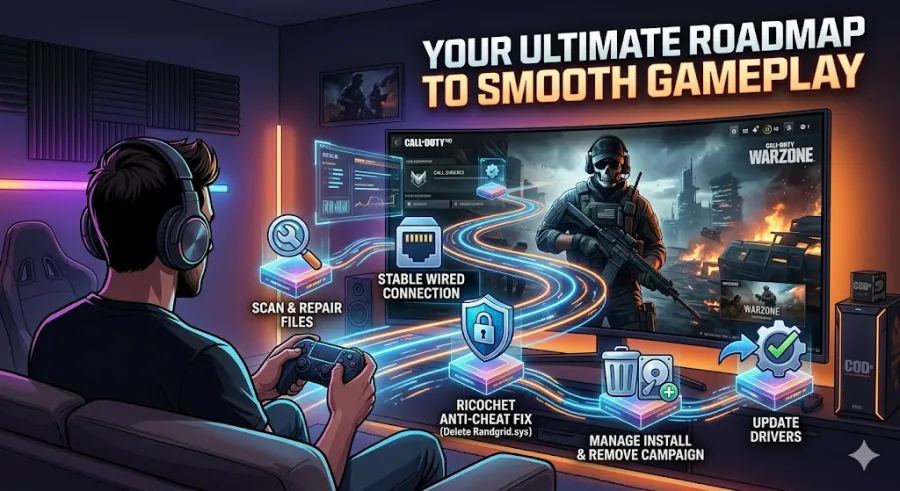
Battle.net: Click the Gear Icon next to the Play button > Select Scan and Repair.
For Console Users: Consoles are a bit different. If your game keeps crashing, check for a "System Update" in your console settings first. If that doesn't work, you may need to navigate to Manage Game Content and ensure all "Data Packs" are fully installed.
Step 2: The Infamous "Randgrid.sys" and Anti-Cheat Errors
PC players often run into errors related to the Ricochet Anti-Cheat system. A common culprit is a file named Randgrid.sys. If this file becomes locked or corrupted, Call of Duty HQ will refuse to open.
To fix this, navigate to your game’s installation folder (usually under SteamLibrary\steamapps\common\Call of Duty HQ). Look for Randgrid.sys and delete it. When you relaunch the game or run a "Verify Integrity" check, the launcher will download a fresh, working version of the file.
Step 3: Solving Connection and Server Issues
Connection issues often manifest as "Packet Burst," "High Latency," or the dreaded "Timed Out" error.
Check the Server Status: Before you restart your router, check the official Activision Support page or social media. Sometimes, the problem is on their end, not yours.
Use a Wired Connection: If you are on Wi-Fi, you are at the mercy of signal interference.
A simple Ethernet cable can reduce your ping significantly and stop disconnects. Flush Your DNS (PC): Open the Command Prompt as an admin and type
ipconfig /flushdns. This clears out old connection data that might be sending your game to the wrong server.
Step 4: Managing Storage and File Size
Call of Duty HQ is massive. In 2026, keeping the entire suite installed can take up over 300GB. If your drive is nearly full, the launcher may struggle to move temporary files, leading to lag and crashes.
Pro-Tip: Use the "Modify Install" feature within the launcher to delete content you don't play. If you only play Multiplayer, uninstall the Campaign and Co-op files. This frees up space and helps the launcher run more efficiently.
Step 5: Update Your Drivers
This sounds like basic advice, but it is the number one cause of PC crashes. Modern games are optimized for the latest drivers from NVIDIA or AMD. If your drivers are even a month old, they might not have the "Day One" patches required for the latest seasonal update in Call of Duty HQ.
Fixing Call of Duty HQ launch errors usually comes down to "cleaning" your digital environment. By verifying your files, clearing out old drivers, and managing your storage, you create a stable foundation for the game to run.
If you have tried all the steps above and the game still won't launch, it may be time for a clean re-install. It’s a pain to download 200GB again, but it’s often the only way to clear out deep-rooted configuration errors.
Stay updated, stay connected, and we’ll see you on the battlefield!
This