Can’t Find the Roblox Gift Card Redeem Option on PS5? Here’s the Simple Workaround to Get Your Robux
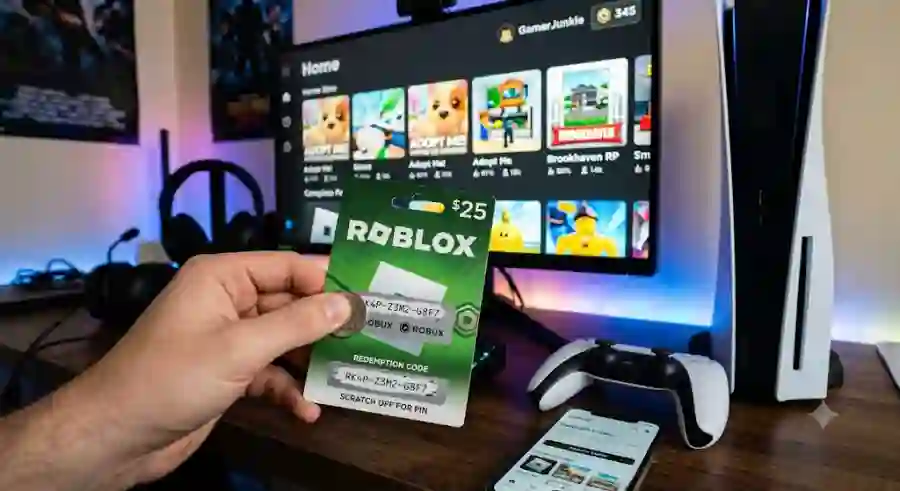
At first, it can seem like the gift card is broken or that you are simply missing an obvious setting. The good news is that neither is necessarily true. The real problem is that the official Roblox gift card redemption process does not work directly inside the Roblox app on PS5.
Highlights
Before getting started, here are the key points to remember:
- You cannot redeem an official Roblox gift card directly inside the Roblox PS5 app.
- You need to use a web browser on a phone, tablet, PC, or Mac.
- The browser must be logged into the exact same Roblox account connected to your PS5.
- Roblox gift cards can provide either Robux or Roblox account credit, depending on the type of card.
- After redemption, your balance should become available on your PS5 through the same Roblox account.
- A PlayStation Network gift card works differently and is redeemed through the PlayStation Store.
- If your Robux do not appear immediately, restarting Roblox and checking your account details can solve the issue.
The most important rule is simple: Always verify your Roblox account before redeeming the code.
Why You Can't Redeem a Roblox Gift Card Directly on PS5
The first thing to understand is that the PS5 version of Roblox does not provide the same gift-card redemption screen available through the Roblox website.
When you purchase things directly through a PlayStation console, Sony's ecosystem handles those transactions through the PlayStation Network Store. Because of this setup, Roblox gift card codes cannot simply be entered into the PS5 version of the app.
This is why searching through the Roblox store on PS5 for a code redemption box usually leads nowhere.
Fortunately, Roblox supports cross-platform account syncing. Your Roblox account can be used across different devices, which means you can redeem the gift card elsewhere and then access the resulting Robux through that same account on your PS5.
Think of it as separating the redemption process from the gaming process.
You redeem the code online, then return to your PS5 and continue playing.
Phase 1: Check Your Linked Roblox Account First
Before scratching off the protective strip on a physical Roblox gift card, take a moment to confirm which Roblox account you are using on your PS5.
This step is extremely important.
If you accidentally redeem the gift card while signed into a different Roblox account, the Robux or credit will be assigned to that account. You cannot simply move the balance to your PS5 profile afterward.
Step 1: Open Roblox on Your PS5
Turn on your PlayStation 5 and launch the Roblox app.
Step 2: Check Your Username
Look at the top-left area of the Roblox home screen and identify the username currently signed in.
Write it down or keep it visible while you prepare to redeem the gift card.
Step 3: Verify Your Account Details
Open Settings using the gear icon and check the account email or other account information associated with the Roblox profile.
You want to make absolutely certain that this is the account you normally use on your PS5.
Step 4: Keep the Information Handy
Once you have confirmed the account, remember those details.
This is the exact Roblox account you need to use when opening the Roblox redemption page on your phone or computer.
Phase 2: How to Redeem a Roblox Gift Card on Your Phone or Computer
Once you've confirmed the account, the actual redemption process is straightforward.
Since the PS5 Roblox app does not provide the required gift card code entry screen, use a normal internet browser instead.
You can use:
- A smartphone
- A tablet
- A Windows PC
- A Mac
- Safari
- Google Chrome
- Another compatible web browser
Step 1: Open a Web Browser
Launch Safari, Chrome, or another browser on your phone, tablet, PC, or Mac.
Step 2: Visit the Roblox Redemption Page
Go directly to roblox.com/redeem.
This is the page where you can enter your Roblox gift card code.
Step 3: Sign Into the Correct Roblox Account
Log into the exact same Roblox account that you confirmed on your PS5.
This is the most important part of the entire process.
Do not assume that the account already open on your phone is the correct one. Double-check the username and account details before continuing.
Step 4: Reveal the Gift Card PIN
If you purchased a physical Roblox gift card, gently scratch away the protective layer on the back.
You will find the card's PIN underneath.
For a digital gift card, open the email containing the gift card information and locate the code.
The code may contain between 10 and 16 digits/characters, depending on the card.
Step 5: Enter the Code
Type the gift card code into the Code box on the Roblox redemption page.
Take your time when entering it. A single incorrect character can cause the redemption to fail.
Step 6 : Select “Redeem”
After entering the code, click Redeem.
If the code is valid and the account is correct, Roblox will process the gift card.
What Happens After You Redeem the Gift Card?
The result depends on the type of Roblox gift card you purchased.
Robux Gift Card
If you have a Robux gift card, the Robux will be credited directly to your Roblox account balance.
Once the redemption is complete, that account can access the Robux across supported devices, including your PS5.
Credit Gift Card
Some Roblox gift cards provide account credit instead of immediately adding Robux.
For example, a card could add $10 or $25 to your Roblox account.
After redeeming the card, you should see an option labeled “Convert to Robux.”
Select that option to turn the Roblox store credit into Robux.
This distinction is worth remembering because not every Roblox gift card necessarily behaves exactly the same way after redemption.
Phase 3: Sync Your Robux With Your PS5
Now comes the easy part.
Once the Roblox website confirms that the gift card redemption was successful, return to your PlayStation 5.
Step 1: Close Roblox
If Roblox is still running in the background, completely close the application.
You can press the Options button on your DualSense controller while Roblox is highlighted and select Close App.
This gives the game a chance to reload your account information from scratch.
Step 2: Relaunch Roblox
Open the Roblox app again on your PS5.
Make sure you're still using the same Roblox account you verified earlier.
Step 3: Check Your Robux Balance
Look toward the top-right corner of the screen.
You should see the gold Robux icon and your updated Robux balance.
If everything was redeemed on the correct account, the newly added Robux should now appear.
From there, you can return to your favorite Roblox experiences and spend your balance.
For example, you can use Robux in games such as Blox Fruits, Adopt Me!, Dress to Impress, or Blade Ball for eligible purchases such as game passes, avatar items, and private servers.
Roblox Gift Card vs. PlayStation Network Gift Card
One of the easiest mistakes to make is confusing a Roblox Gift Card with a PlayStation Network (PSN) Gift Card.
They are not the same thing, and their redemption methods are completely different.
If someone gave you a blue PlayStation gift card instead of a Roblox gift card, you should redeem it through the PlayStation Store.
How to Redeem a PSN Gift Card on PS5
1. Open the PlayStation Store
Turn on your PS5 and launch the PlayStation Store.
2. Open the Three-Dot Menu
Move to the top-right corner of the screen and select the Three Dots (...) menu.
3. Choose “Redeem Code”
Select Redeem Code.
4. Enter the PSN Voucher
Type in the 12-digit PSN voucher code.
Once accepted, the value is added directly to your PSN Wallet.
5. Open Roblox
Launch the Roblox app on your PS5.
6. Select the Robux Icon
Press the gold Robux icon in the top menu.
7. Choose a Robux Package
Select the Robux pack you want to purchase.
At checkout, you can use your available PSN Wallet balance to pay for the purchase.
So, if you have a Roblox gift card, redeem it through Roblox's website. If you have a PSN gift card, redeem it through the PlayStation Store.
Keeping these two methods separate prevents a lot of unnecessary confusion.
Quick Troubleshooting: Roblox Gift Card Problems on PS5
Even after following the correct process, you may occasionally run into an issue. Here are the most common problems and what to check.
“My Robux Aren't Showing Up on My PS5”
Don't panic if the new balance isn't immediately visible.
Force Restart Roblox
The console version of Roblox may not always refresh your balance in real time.
Completely close the Roblox app and reopen it.
This simple restart can force the application to reload your updated account information.
Double-Check the Roblox Account
This is one of the most important troubleshooting steps.
Open roblox.com in your browser and log into your account.
Click the gear icon and go to Settings.
Compare the account's User ID with the account shown on your PS5.
A large number of missing-Robux problems happen because the gift card was redeemed on a second Roblox account that was already logged into the user's phone or browser.
Before assuming the card failed, make sure you redeemed it on the right profile.
Can You Redeem the Card Using the PS5 Web Browser?
Technically, the PS5 has a hidden built-in web browser.
However, using it to redeem a Roblox gift card is not recommended.
The PS5 browser experience can be clunky and may suffer from rendering problems. It can also cause difficulties when trying to enter information into security-sensitive forms.
For that reason, a smartphone, tablet, or laptop is usually the much easier option.
It takes only a few moments and avoids unnecessary frustration.
What If the Roblox Gift Card Says “Invalid” or “Already Redeemed”?
If Roblox rejects the code, carefully inspect the characters you entered.
Some characters can look very similar, particularly when reading a printed gift card.
Pay close attention to:
- 0 versus O
- 1 versus I
- 5 versus S
Enter the code carefully and check every character before trying again.
Check Whether the Retailer Activated the Card
If you purchased the gift card from a physical retail store such as Walmart, Target, or GameStop, check your receipt.
Retail gift cards generally need to be activated at the register when purchased.
If the cashier did not properly activate the card, Roblox may reject the code even though the number itself appears correct.
Your receipt can help confirm whether the card was activated during the purchase.
Why This Method Matters for PS5 Roblox Players
The biggest takeaway is that the problem is not with your Roblox gift card.
The confusion comes from the difference between Roblox's account system and the way console purchases are handled.
PS5 players may expect the Roblox app to provide every feature available on the Roblox website. But gift card redemption is handled separately, which is why the website becomes the important part of the process.
The cross-platform nature of Roblox makes the workaround practical. You do not have to purchase another card, create a new account, or find a hidden redemption button inside the PS5 app.
You simply need to:
Confirm the correct account → redeem the gift card online → reopen Roblox on PS5 → check your Robux balance.
That is the entire process.