The Next Chapter of Console Gaming Why the Native PS5 Version Changes Everything
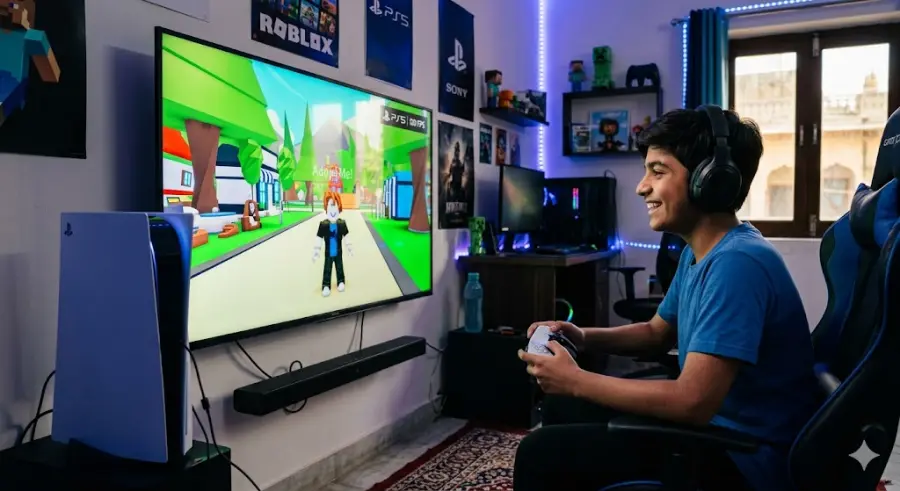
If you’ve been playing Roblox on your PlayStation for a while, you might have noticed that the April 2026 update feels very different from the usual patches. This is not just a simple update with bug fixes or small improvements. Instead, it is a major shift in how the game runs on the PlayStation 5, and many players are still trying to understand what actually changed.
For the past few years, most PS5 users were technically playing the PS4 version of Roblox. It worked fine thanks to backward compatibility, but it did not fully use the power of the PS5. Features like faster SSD loading, better lighting, and advanced controller feedback were missing. Now, with the April 2026 native release, things have finally changed. The update is not always just a download—it can also mean switching to a completely new version of the game.
Let’s break it down in a simple way so you know exactly what to do and what to expect.
Why This Update Feels Different
The biggest reason this update stands out is because it introduces a native PS5 version of Roblox. This means the game is now built specifically for the PS5 hardware instead of relying on the older PS4 version.
Because of this, some players may not see the changes right away. That’s because updating the game is not always automatic. In many cases, you actually need to download a separate version from the PlayStation Store to unlock the new features. This includes faster loading times, improved graphics, and better controller support.
Standard Automatic Update
If you already have Roblox installed and just want the latest patch for your current version, the PS5 usually handles it automatically. Still, sometimes updates get stuck or do not install properly.
Here’s how you can check manually:
- Go to your PS5 home screen
- Highlight the Roblox icon
- Press the Options button on your controller
- Select “Check for Update”
If there is an update available, it will start downloading right away.
However, there is one important thing to remember. If your console says you already have the latest version, but your friends are using new features that you cannot see, then you are probably still using the PS4 version. In that case, you will need the second method.
Upgrade to the Native PS5 Version
This is the most important step for players in 2026. The native PS5 version is treated like a separate app, not just a normal update.
Follow these steps to switch:
- Open the PlayStation Store
- Search for Roblox
- Look carefully for the version labeled “PS5”
- Download that version
The file size is very small, usually under 1GB, so it should install quickly even on a slow connection.
Once the new version is ready, it is a good idea to delete the old PS4 version. This will help you avoid confusion and save storage space. Just go to the old app on your home screen, press Options, and select Delete.
What Changes After the Update
After installing the native version, you will notice several improvements right away. Some are very obvious, while others may take a little time to get used to.
Faster Loading Times
One of the biggest upgrades is speed. Thanks to the PS5’s SSD, games load much faster than before. Experiences that used to take 10 to 15 seconds now load almost instantly.
Popular Roblox games like NFL Universe Football or Bite by Night feel much smoother when joining or switching between servers.
Improved Lighting and Visuals
The graphics have also been upgraded. The new version offers stronger contrast, deeper shadows, and more realistic lighting. While this gives the game a more modern look, not everyone likes it.
Some players have noticed that darker games, especially horror experiences, feel too dark now. If you face this issue, you can simply increase the brightness in the in-game settings.
DualSense Controller Features
Another new addition is support for the PS5 controller’s advanced features. The DualSense Wireless Controller now provides haptic feedback in supported games.
This means you can feel vibrations and small movements while playing, which makes actions like combat or movement feel more real and engaging.
Common Problems and Fixes
Even though the update is exciting, it is not perfect. Some players have faced issues during installation or after switching versions.
Here are a few quick fixes:
Storage Issues
Make sure you have at least 5GB of free space. Even though Roblox is small, the system needs extra space to install updates properly.
License Errors
If you see a lock icon on the game, go to Settings, then Users and Accounts, then Restore Licenses. This usually fixes the problem quickly.
Missing PS5 Version in Store
Sometimes the PS5 version does not show up in search results. If that happens, open the PS4 version page, click the three dots, and select “View Product.” You may find the PS5 version hidden there.
Keyboard and Mouse Warning
While the new version brings many improvements, it also has a few downsides. One of the biggest complaints right now is related to keyboard and mouse support.
Features like Shift Lock and chat controls are not working properly for many players. If you rely heavily on keyboard and mouse, you may want to keep the PS4 version installed for now until these issues are fixed.
The April 2026 update for Roblox on PS5 is more than just a regular patch. It is a complete upgrade that finally brings the game in line with what the console can do.
By switching to the native version, you can enjoy faster loading, better graphics, and improved controller features. However, there are still a few bugs that need to be fixed, especially for keyboard and mouse users.
Overall, this update is a big step forward and shows that Roblox is continuing to grow and improve on modern platforms. Now the choice is yours—stick with the stable PS4 version or move to the faster and more advanced PS5 experience.