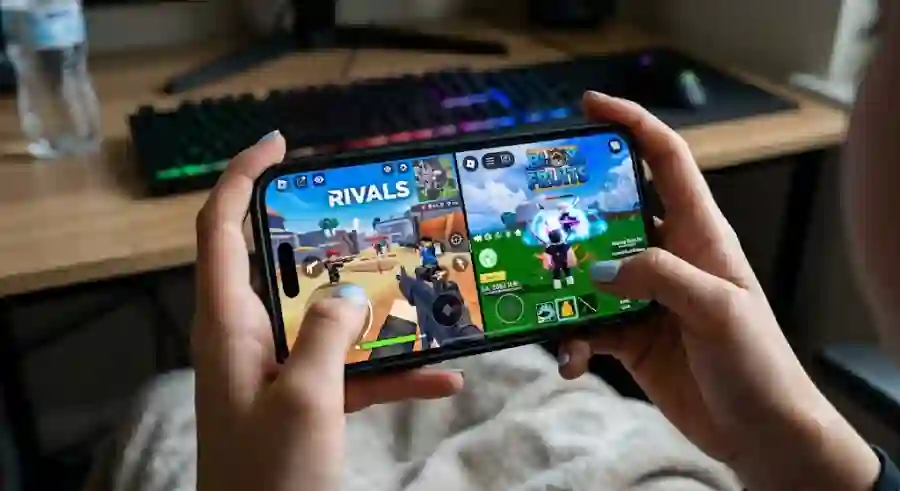
Master Mobile PvP With Perfect Camera Control, Aim Precision and Combat Settings in Roblox Rivals and Blox Fruits
A sensitivity setting that feels perfect on a large tablet may feel uncontrollable on a smaller smartphone. Similarly, a setup that works for a sniper player in Rivals may feel too slow for a Blox Fruits player who needs instant 360-degree turns during PvP battles.
Understanding Roblox Mobile Sensitivity Mechanics
Before changing your settings, it is important to understand how Roblox mobile sensitivity actually works.
Many players simply increase sensitivity when their camera feels slow or decrease it when aiming feels unstable. However, sensitivity is affected by several different systems working together.
Roblox Base Sensitivity Slider (0.0 to 1.0)
The main Roblox sensitivity slider controls your overall camera rotation speed across different Roblox experiences.
The value ranges from 0.0 to 1.0, but mobile devices handle these numbers differently compared to PC.
For example, a sensitivity level of 0.2 may feel controlled on one phone but completely different on another device because touchscreen movement depends on how far your thumb travels across the screen.
Mobile players should focus less on copying exact numbers from other players and more on finding settings that match their own hand movement and device.
Game-Specific Sensitivity Options
Some Roblox games include their own additional sensitivity controls.
Games like Rivals provide extra options for different aiming situations, including:
- Hip-fire sensitivity
- Scoped aiming sensitivity
- ADS (Aim Down Sight) adjustments
These additional settings allow players to separate their normal camera movement from precision aiming.
For example, a player may want fast movement while running around the map but slower sensitivity when aiming with a sniper rifle.
Screen Size and DPI Impact
Your device size plays a major role in how sensitivity feels.
A setting that feels smooth on an iPad or large tablet can become extremely fast on a smaller smartphone.
This happens because your thumb covers a larger percentage of the screen during each swipe. A short movement on a small display can create a much larger camera rotation compared to a bigger screen.
Players should always consider:
- Display size
- Touch response
- Finger placement
- Screen resolution
- Personal grip style
before copying another player's settings.
FPS and Refresh Rate Effects
Even perfect sensitivity settings cannot completely fix poor performance.
Frame rate directly affects how your touchscreen movements translate into camera movement.
When Roblox drops below 30 FPS, players may experience:
- Delayed camera response
- Slow aiming reactions
- Unstable tracking
- Missed ability timing
A high sensitivity setting cannot solve input delay caused by low performance.
For competitive Roblox gameplay, maintaining stable FPS is just as important as choosing the right sensitivity.
Best Roblox Rivals Mobile Camera & Sensitivity Settings for FPS Precision
Unlike many Roblox games, Rivals requires extremely accurate movement and aiming. Small mistakes can decide an entire match.
This first-person shooter focuses on:
- Crosshair tracking
- Quick flick shots
- Reaction speed
- Weapon control
- Precise movement
Many mobile players make the mistake of using extremely high sensitivity because they want faster reactions.
However, excessive sensitivity often creates the opposite result.
Your camera may move quickly, but your accuracy decreases because small finger movements create large camera jumps.
For Rivals, stability is usually more important than maximum speed.
Recommended Roblox Rivals Mobile Settings
| Setting | Recommended Value | Why It Works |
|---|---|---|
| Roblox Base Sensitivity | 0.15 - 0.25 | Prevents sudden camera jumps during close-range fights |
| Rivals Sensitivity Multiplier | 30% - 45% | Provides controlled tracking while maintaining the ability to perform 180-degree turns |
| Scoped / ADS Multiplier | 0.8x - 1.0x | Keeps sniper aim steady while zoomed in |
| Field of View (FOV) | 90 - 105 | Improves awareness while keeping enemy targets visible |
| Crosshair Style | Small Dot / Thin Cross | Helps maintain visibility without covering enemy hitboxes |
Why Lower Sensitivity Works Better in Rivals
Rivals rewards precision more than random camera movement.
When fighting close-range opponents, high sensitivity can cause your crosshair to move past the target before you can react.
A lower sensitivity range between 0.15 and 0.25 gives better control for:
- Tracking moving enemies
- Holding angles
- Landing accurate shots
- Controlling recoil
- Performing small corrections
This is especially useful for players who prefer rifles, pistols, or sniper weapons.
Mobile Movement and Control Adjustments for Roblox Rivals
Sensitivity is only one part of a strong mobile setup. Your button layout also affects your performance.
Enable Auto-Sprint
Auto-sprint is highly recommended for mobile players.
On touchscreen devices, players already need to manage:
- Movement controls
- Camera movement
- Shooting
- Jumping
- Aiming
Holding movement controls manually while trying to aim takes valuable screen space.
Auto-sprint allows your thumb to focus on camera control and reaction movement instead.
Adjust Button Position and Transparency
Your action buttons should not block your vision during fights.
Move important controls like:
- Shoot button
- Jump button
- Scope button
slightly away from the edges of your screen.
A transparency level between 30% and 50% works well because buttons remain visible while reducing visual distraction.
A clean screen layout helps you react faster during intense fights.
Using Auto-Shoot and Aim Assist Effectively
Mobile aim assist is a debated feature among players.
Some competitive players avoid it because they prefer complete manual control. Others use it because it helps during mid-range fights.
When used correctly, aim assist can improve consistency.
However, sniper players should be careful.
If sensitivity is too high, aim assist may pull your crosshair away from the exact position needed for leading moving targets.
For sniper-focused gameplay:
- Lower sensitivity slightly
- Practice manual tracking
- Avoid relying completely on assistance features
A balanced setup creates better long-term improvement.
Best Roblox Blox Fruits Mobile Camera & Sensitivity Settings for PvP & Combos
While Rivals depends heavily on shooting accuracy and controlled aiming, Blox Fruits requires a completely different approach.
Blox Fruits PvP is built around fast movement, unpredictable enemy actions, aerial battles, and instant ability combinations. Players need to react within seconds while managing powerful fighting styles, swords, fruits, and movement techniques.
Whether you are using Godhuman, Cursed Dual Katana, or powerful elemental fruit combinations, your camera settings must support fast reactions.
A slow camera can make you lose track of opponents during air fights, while an overly sensitive camera can make your attacks miss completely.
The goal is to create a balance between speed and control.
Recommended Blox Fruits Mobile Camera & Sensitivity Setup
| Setting | Recommended Value | Why It Works |
|---|---|---|
| Roblox Base Sensitivity | 0.35 - 0.50 | Allows fast 180-degree and 360-degree camera turns during PvP |
| Shift Lock Mode | Enabled (On Screen) | Keeps your character direction connected with camera movement |
| Camera Mode | Classic / Follow | Provides full manual control over camera angles |
| Camera Vibration | Disabled (Off) | Removes screen shake during powerful abilities |
| Zoom Distance | Medium to Long | Gives better visibility during aerial combat |
Why Blox Fruits Needs Higher Sensitivity Than Rivals
The reason Blox Fruits players usually prefer higher sensitivity comes down to combat design.
In a shooter like Rivals, your main goal is keeping your crosshair stable.
In Blox Fruits, you constantly need to:
- Turn toward attacking players
- Track enemies in the air
- Dodge incoming abilities
- Quickly switch targets
- Follow movement combos
A player using slow sensitivity may struggle to rotate quickly enough when an opponent suddenly appears behind them.
A higher sensitivity range between 0.35 and 0.50 allows faster reactions while keeping enough control for accurate ability usage.
Mobile Combat Strategies for Better Blox Fruits Performance
Having the correct settings is only the beginning. Competitive Blox Fruits players also need the right habits and movement techniques.
Mastering Shift Lock on Mobile
Shift Lock is one of the most important features for serious mobile PvP players.
When activated, the Shift Lock icon keeps a crosshair-like focus point in the center of the screen and connects your character's movement direction with your camera.
This becomes extremely useful when performing advanced moves such as:
- Spikey Trident pulls
- Electric Claw dashes
- Fast sword combos
- Movement-based attacks
Without Shift Lock, players often struggle to maintain direction during fast battles.
For competitive mobile PvP, Shift Lock is practically essential.
Disable Screen Shake for Cleaner Combat
Many powerful Blox Fruits abilities create large visual effects.
Explosive attacks, ultimate abilities, and multi-hit combinations can fill your screen with movement and shaking effects.
Although these animations look impressive, they can make combat harder.
Turning off camera vibration helps you:
- Keep enemies visible
- Track movement better
- Maintain combo accuracy
- React faster after abilities
A cleaner screen often leads to better decision-making during fights.
Use Free Camera Against Air Camp Players
High-bounty players often use aerial strategies where they stay above the battlefield and attack from unexpected angles.
Against these players, briefly switching to free camera movement can help you locate their position.
A useful strategy is:
- Zoom out and scan the area.
- Find the enemy’s location.
- Return to Shift Lock.
- Begin your attack combination.
This approach improves awareness without sacrificing combat control.
How to Find Your Personal Roblox Mobile Sensitivity Sweet Spot
There is no single sensitivity setting that works perfectly for every Roblox player.
Your ideal setup depends on several personal factors, including:
- Phone or tablet size
- Finger movement speed
- Screen protector type
- Hand position
- Gaming experience
- Preferred playstyle
A professional player’s settings may not feel comfortable on your device.
Instead of constantly copying other players, use testing methods to create your own perfect configuration.
The Tracking Test for FPS Games Like Rivals
The tracking test helps improve aim precision and camera control.
Follow these steps:
Step 1:
Enter the Rivals Shooting Range.
Step 2:
Choose a stationary target or training dummy.
Step 3:
Place your crosshair directly on the target’s head.
Step 4:
Move left and right using your movement controls while trying to keep your crosshair locked on the target.
Now analyze your results.
If Your Crosshair Moves Past the Target:
Your sensitivity is too high.
Reduce your sensitivity by approximately:
0.05
Then test again.
If Your Crosshair Cannot Keep Up:
Your sensitivity is too low.
Increase it by:
0.05
Small adjustments are better than making huge changes.
The 180-Degree Swipe Test for Fast Combat Games
This test works especially well for games like Blox Fruits where quick turning is important.
Follow these steps:
- Stand in an open area inside Blox Fruits or Rivals.
- Place your thumb where you normally control the camera.
- Perform one natural swipe across your screen.
- Observe how far your camera rotates.
The ideal result:
Your camera should complete a smooth 180-degree turn with one comfortable swipe.
If you need multiple swipes to turn around, your sensitivity is too low.
If your camera spins too far and becomes difficult to control, your sensitivity is too high.
The perfect setting allows fast reactions without losing accuracy.
Universal Roblox Mobile Performance and Latency Improvements
Even the best sensitivity setup cannot perform well if your device suffers from lag, overheating, or touch delay.
For competitive Roblox gameplay, performance optimization is just as important as control settings.
1. Set Graphics Mode Manually
Roblox automatically adjusts graphics depending on your device, but manual control often provides better results.
Recommended graphics level:
2 to 4 bars
Higher graphics settings may look better, but they can create problems such as:
- Frame drops
- Device overheating
- Thermal throttling
- Delayed touch response
Lower and stable graphics usually provide a smoother competitive experience.
A consistent frame rate is more valuable than maximum visual quality.
2. Keep Your Screen Clean and Dry
Touchscreen accuracy depends heavily on finger movement.
Oil, sweat, and dust on your screen can increase friction and make your swipes inconsistent.
This can affect:
- Camera movement
- Aim tracking
- Reaction speed
Cleaning your screen regularly can noticeably improve control.
Some players also prefer matte screen protectors because they reduce friction changes and create smoother thumb movement.
3. Use a 3-Finger or 4-Finger Claw Grip
Many beginner mobile players use only two thumbs.
While this works for casual gameplay, competitive players often switch to claw controls.
A 3-finger or 4-finger claw grip allows you to:
- Aim with your thumb
- Jump with your index finger
- Activate abilities faster
- Manage more buttons simultaneously
This setup is especially useful on larger smartphones and tablets.
It may feel uncomfortable at first, but after practice it can significantly improve reaction speed.
Finding the Right Balance in Your Gameplay
Changing sensitivity can feel strange in the beginning.
Your hands develop muscle memory based on your previous settings, so even a better configuration may initially feel wrong.
Many players make the mistake of changing settings after every bad match.
This prevents improvement because your brain never gets enough time to adapt.
Instead:
- Choose a balanced sensitivity setup
- Play consistently
- Test it for at least 5 to 10 games
- Evaluate your tracking and reaction improvement
A good sensitivity setting is not the one that feels perfect immediately.
It is the one that improves your performance after your muscle memory adjusts.
Industry Impact: Why Mobile Optimization Matters in Roblox Gaming
Mobile gaming has become one of the biggest parts of the gaming industry, and Roblox represents that shift clearly.
Games are no longer designed only around casual experiences. Competitive Roblox titles now require:
- Fast reactions
- Advanced controls
- Strategic movement
- Professional-level optimization
The rise of games like Rivals and Blox Fruits shows that mobile players are becoming a serious competitive audience.
Developers continue improving mobile accessibility, while players continue finding better ways to compete using touchscreen devices.
The difference between winning and losing often comes down to small improvements:
- Better camera control
- Faster reactions
- Cleaner layouts
- Stable FPS