Complete PS5 120Hz Setup How to Boost FPS, Reduce Input Lag and Get Competitive Gaming Performance

To experience 120 frames per second, players need more than just a powerful console. The correct display, HDMI connection, PS5 system settings, and in-game options all need to work together. Without proper configuration, even a compatible setup may stay locked at 60 FPS.

 Highlights: What You Need for PS5 120 FPS Gaming

Before changing settings inside the PlayStation 5 menu, you first need to make sure your hardware supports high-frame-rate gaming.

A common mistake many players make is changing console settings while using a display that cannot handle 120Hz output. If your monitor or television is limited to 60Hz, your PS5 cannot deliver a true 120 FPS experience.

Your setup should include:

PS5 120 FPS Hardware Checklist

  • 120Hz or higher refresh-rate monitor/TV
  • HDMI 2.1 port for 4K resolution at 120Hz
  • Ultra High Speed HDMI cable
  • Compatible games with 120 FPS support

1. Choose a Compatible 120Hz Display

The first and most important requirement is your screen.

Your TV or gaming monitor must support a native 120Hz refresh rate. A display with only a 60Hz refresh rate cannot show 120 FPS gameplay, even if your PS5 and game support it.

The requirements depend on the resolution you want.

1080p or 1440p Gaming at 120Hz

For lower resolutions like Full HD (1080p) or 1440p, many gaming monitors with HDMI 2.0 support can successfully run 120Hz gameplay.

This setup is common among competitive players because lower resolutions can sometimes provide more stable performance and lower latency.

4K Gaming at 120Hz

If you want the full next-generation experience with 4K resolution at 120Hz, you need a display equipped with an HDMI 2.1 port.

HDMI 2.1 provides the higher bandwidth required for combining:

  • 4K resolution
  • 120Hz refresh rate
  • High-quality color output
  • Advanced gaming features like Variable Refresh Rate (VRR)

Without HDMI 2.1, most 4K displays will remain limited to 60Hz.

2. Use the Correct HDMI Port and Cable

Having a modern 4K television does not automatically mean every HDMI port supports 120Hz gaming.

Many TVs include multiple HDMI ports, but only specific ports support the full bandwidth required for PS5 high-performance gaming.

Check the labels on your TV or monitor. Look for ports marked:

  • HDMI 2.1
  • 4K @ 120Hz
  • Gaming HDMI
  • eARC/Game port

Using the wrong HDMI connection can prevent your PS5 from activating 120Hz output.

The cable also matters.

The PlayStation 5 includes an Ultra High Speed HDMI cable in the box, and this is the recommended cable for 4K 120Hz gaming. Older HDMI cables may not provide enough bandwidth.

A true high-speed setup requires support for up to 48 Gbps bandwidth, which allows the console to transfer high-resolution images at high refresh rates without connection problems.

Step 1: Enable 120Hz Output in PS5 Video Settings

Once your hardware is ready, the next step is configuring the PlayStation 5 system settings.

Follow these steps:

  1. Open the PS5 home screen.
  2. Select the Settings icon located in the top-right corner.
  3. Scroll down and open Screen and Video.
  4. Select Video Output.
  5. Find 120 Hz Output.
  6. Change the option to Automatic.

Why Should You Set 120Hz Output to Automatic?

The Automatic setting gives your PS5 the flexibility to adjust depending on the game.

Your console will continue using normal refresh rates while browsing menus or playing games that do not support 120 FPS. However, when you launch a compatible title, the PS5 can automatically switch to 120Hz mode.

This prevents unnecessary high refresh-rate usage while ensuring supported games receive maximum performance.

Recommended PS5 Video Settings for 120 FPS Gaming

To get the best balance between performance and image quality, these video settings are recommended:

SettingRecommended OptionWhy It Matters
ResolutionAutomatic (or 1440p / 2160p)Allows PS5 to match your display’s maximum supported resolution
120 Hz OutputAutomaticEnables higher refresh rates in supported games
VRR (Variable Refresh Rate)AutomaticReduces screen tearing and improves smoothness
ALLM (Auto Low Latency Mode)OnAutomatically activates low-latency Game Mode
4K Video Transfer RateAutomaticAdjusts bandwidth settings and prevents visual issues

These settings create the foundation for a smoother PS5 gaming experience. However, enabling 120Hz alone is not enough. Many games still launch using their default visual-quality mode.


Step 2: Enable Global Performance Mode on PS5

Many PS5 players complete the 120Hz setup but still do not experience the smoother gameplay they expected. The reason is that the console may still launch games using Resolution Mode (also known as Fidelity Mode) instead of prioritizing frame rate.

Resolution Mode focuses on delivering the highest possible visual quality. It improves details like ray tracing, native 4K resolution, lighting effects, and graphical enhancements. However, these improvements often reduce the maximum frame rate.

For players who care about competitive performance, faster reactions, and smoother movement, Performance Mode is usually the better choice.

The PS5 includes a global setting that allows you to automatically prioritize frame rates across supported games.

Follow these steps:

  1. Open Settings from the PS5 home screen.
  2. Scroll down and select Saved Data and Game/App Settings.
  3. Choose Game Presets.
  4. Select Performance Mode or Resolution Mode.
  5. Change the option to Performance Mode.

The complete path is:

Settings ➝ Saved Data and Game/App Settings ➝ Game Presets ➝ Performance Mode

Once activated, the PS5 will tell supported games to prioritize smoother performance instead of maximum visual quality.

This means many games will automatically target higher frame rates, including:

  • 60 FPS gameplay
  • 120 FPS gameplay where supported
  • Reduced input delay
  • Faster response during competitive matches

For fast-paced multiplayer titles, this difference can completely change how the game feels.

Performance Mode vs Resolution Mode: Which One Should You Choose?

The choice between Performance Mode and Resolution Mode depends on the type of game you play.

Performance Mode

Best for:

  • Competitive shooters
  • Racing games
  • Fighting games
  • Multiplayer titles
  • Esports-focused gaming

Advantages:

  • Higher FPS
  • Smoother movement
  • Lower input latency
  • Faster aiming response
  • Better motion clarity

Games like Call of Duty: Warzone, Fortnite, Apex Legends, Rocket League, and Overwatch 2 benefit significantly from higher frame rates.

Resolution Mode

Best for:

  • Story-driven adventures
  • Open-world games
  • Cinematic experiences

Advantages:

  • Sharper image quality
  • Better lighting effects
  • Improved ray tracing
  • More detailed environments

For example, players who enjoy visually stunning single-player experiences like God of War Ragnarök or The Last of Us may prefer Resolution Mode because the improved graphics create a more cinematic experience.

The best option depends on whether you value competitive speed or visual quality.

Step 3: Adjust In-Game Graphics Settings for 120 FPS

Although PS5 system settings handle most of the work, some games require additional changes inside their own graphics menus.

A game can support 120 FPS, but the feature may remain disabled until you manually activate it.

After launching a compatible game:

  1. Open the game menu.
  2. Go to:

Settings ➝ Video / Graphics

  1. Search for options such as:
  • 120 Hz Mode
  • Performance Preference
  • Frame Rate Target
  • High Frame Rate Mode
  1. Turn the option ON.

Games with 120 FPS support include:

  • Call of Duty: Warzone
  • Fortnite
  • Apex Legends
  • Rocket League
  • Overwatch 2

Some games automatically detect the PS5 Performance Mode setting and activate 120Hz without requiring additional changes.

For example, certain Call of Duty titles can automatically enable high-frame-rate gameplay once the correct PS5 system settings are active.

However, checking the in-game graphics menu is always recommended because every developer handles performance settings differently.

Step 4: How to Confirm Your PS5 Is Running at 120Hz

After changing all settings, you may want to verify that your setup is actually working.

The PS5 provides a simple way to check your current video output information.

Follow these steps:

  1. While playing a game, press the PS Button on your controller.
  2. Open:

Settings ➝ Screen and Video ➝ Video Output

  1. Select:

Video Output Information

  1. Check the current resolution and refresh rate.

If everything is configured correctly, you should see one of these results:

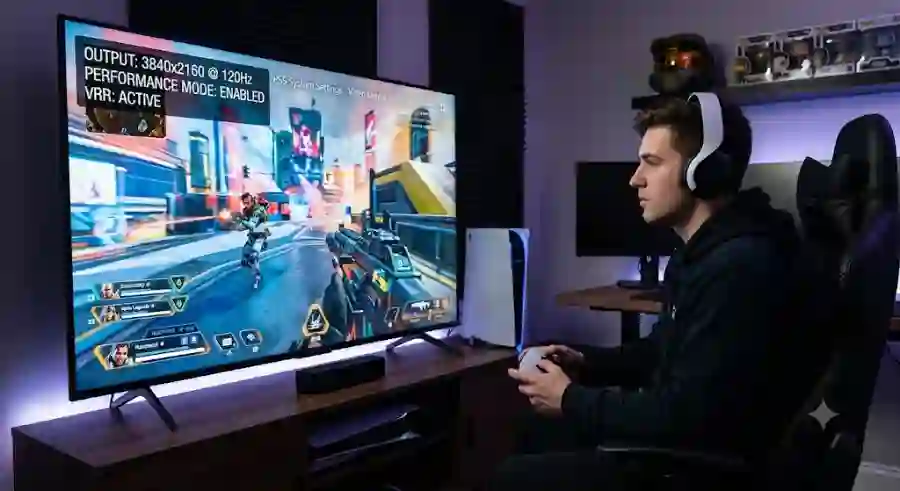
  • 3840 x 2160 - 120 Hz for 4K displays
  • 1920 x 1080 - 120 Hz for Full HD displays
  • 2560 x 1440 - 120 Hz for compatible 1440p monitors

Seeing a 120Hz refresh rate confirms that your PS5 and display are communicating correctly.

Troubleshooting Common PS5 120 FPS Problems

Even after following every step, some players may experience problems such as black screens, flickering, signal drops, or the inability to activate 120Hz.

Here are the most common issues and solutions.

Issue 1: 120Hz Option Is Greyed Out

If the 120Hz Output option is unavailable, your setup may have a hardware limitation.

Check Your AVR or Soundbar Connection

Many gaming setups connect the PS5 through an AV receiver or soundbar before reaching the television.

The problem is that older receivers and soundbars may not support HDMI 2.1 passthrough.

When this happens, the device blocks the high-bandwidth signal required for 4K 120Hz gaming.

Solution:

Connect the PS5 directly to the TV or monitor.

For audio, use:

  • HDMI eARC
  • Optical audio
  • Other supported audio connections

This allows the video signal to travel directly without bandwidth limitations.

Disable Black Frame Insertion (BFI)

Some televisions include motion enhancement features designed to improve clarity. However, certain options can interfere with high refresh-rate gaming.

Look for settings such as:

  • OLED Motion
  • Motion Plus
  • Black Frame Insertion

Disable these features and try activating 120Hz again.

Issue 2: Black Screen or Signal Drops During Gaming

Sometimes a PS5 may attempt to output a high-bandwidth signal that your cable or display cannot handle properly.

Symptoms include:

  • Temporary black screens
  • Flickering
  • Random signal loss

To fix this:

  1. Open:

Settings ➝ Screen and Video ➝ Video Output

  1. Find:

4K Video Transfer Rate

  1. Change it from:

Automatic

to:

-1 or -2

This reduces the required bandwidth by adjusting color transmission settings.

The image quality difference is usually very small, but it can solve compatibility problems caused by:

  • Older HDMI cables
  • Lower-quality HDMI ports
  • Budget television models

Issue 3: Games Look Slightly Blurry After Enabling 120 FPS

Some players notice that games appear less sharp after switching to Performance Mode.

This is normal.

Many games use dynamic resolution scaling to maintain higher frame rates. Instead of locking the game at a fixed resolution, the system may slightly reduce image resolution during demanding moments to keep performance stable.

For competitive gaming, this trade-off is often worth it.

A slightly softer image can provide:

  • Higher FPS
  • Lower input delay
  • Faster reactions
  • Smoother controls

However, if you prefer maximum visual quality, you can always switch back to Resolution Mode through:

Settings ➝ Saved Data and Game/App Settings ➝ Game Presets

Why PS5 120 FPS Gaming Matters for Modern Players

High refresh-rate gaming has become one of the biggest trends in the console gaming industry.

For years, console players were limited mainly to 30 FPS or 60 FPS experiences. With the arrival of the PS5 and Xbox Series X|S generation, smoother gameplay has become a major focus.

Competitive players especially benefit from higher frame rates because every action happens faster.

A 120 FPS experience can improve:

  • Enemy tracking in shooters
  • Driving precision in racing games
  • Timing in fighting games
  • Overall controller responsiveness

While casual players may notice smoother movement, competitive gamers often feel the difference immediately.